

Executive Architecture: The Myth of Direct Prim-to-Mesh Export
For virtual world creators in Second Life, building with standard geometric primitives—affectionately termed prims—remains one of the most intuitive, tactile, and rapid prototyping workflows in the metaverse. The in-world building tools allow for instantaneous manipulation of scale, taper, shear, cut, path twisting, and hollow profiles without leaving the simulator or wrestling with complex third-party 3D software viewports.
However, as parcels grow denser and sim performance budgets tighten, standard prim builds present a devastating bottleneck: Land Impact (LI). A moderately detailed industrial console, cybernetic terminal, or wasteland barricade crafted from 25 to 40 individual prims will consume 25 to 40 Land Impact on your parcel.
Many creators attempt an apparent shortcut: selecting their prim linkset in the Firestorm viewer, exporting it as a COLLADA (.dae) file, and uploading it immediately back to Second Life as a mesh.
$$\\text{Land Impact} = \\max(\\text{Download Weight}, \\text{Physics Weight}, \\text{Server Weight})$$
When raw prims are exported to COLLADA and uploaded without refinement:- 01Redundant Interior Faces: Every face between touching, nested, or intersected prims remains fully rendered, wasting thousands of invisible triangles.
- 02Excessive Curved Topology: Cylinders, spheres, and toruses generate dense 24-to-64-segment vertex loops that spike the viewer's Download Weight.
- 03Catastrophic Viewer Decimation: Second Life's default automated LOD generator decimates geometry indiscriminately, turning sharp industrial edges into collapsed triangular debris at 20 metres.
- 04Uncalculated Havok Physics Cost: Second Life attempts to compute collision geometry for every individual vertex, spiking Physics Weight upwards of 40.0.
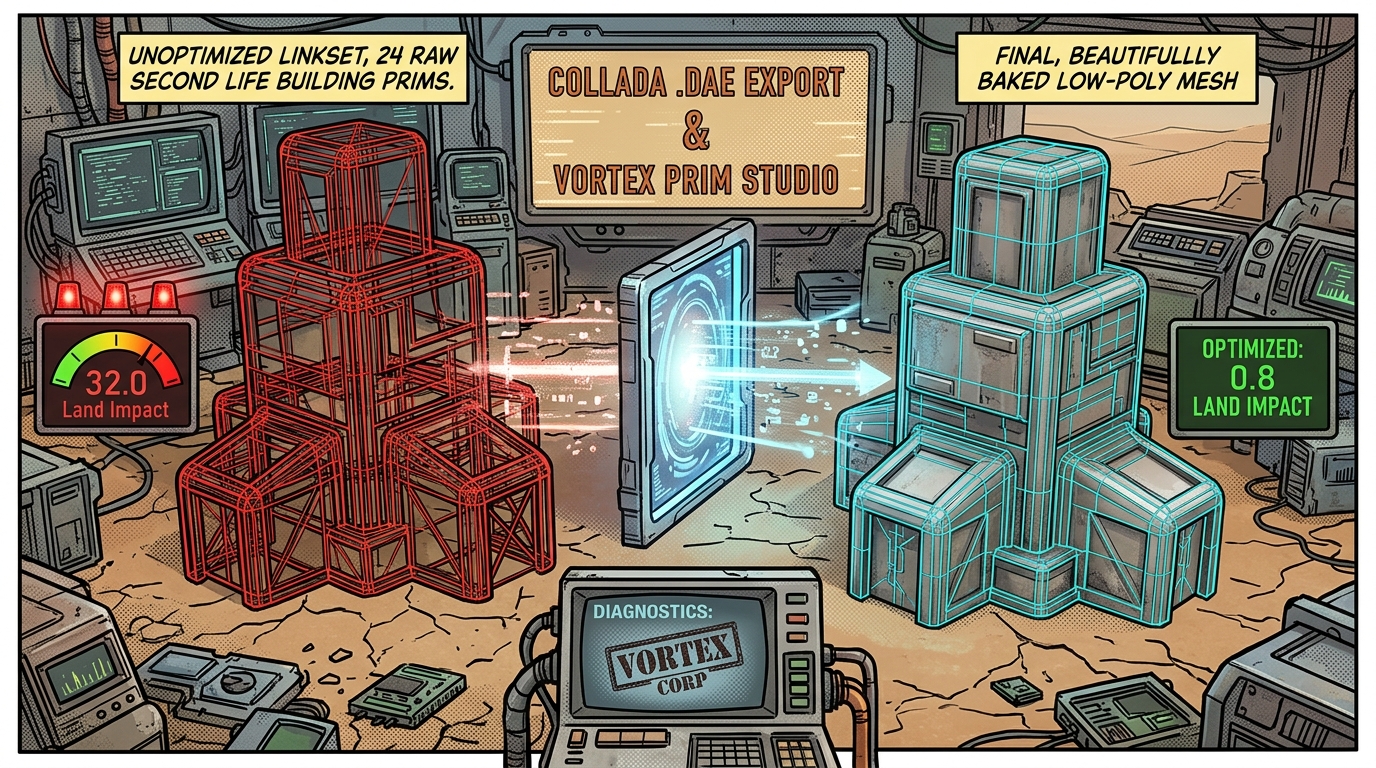
Step 1: In-World Prim Construction & Preparation Checklist
Before touching the export dialogue, your prim linkset must be architected for geometric efficiency. While standard prims permit arbitrary stretching and overlapping, clean pre-export hygiene dramatically simplifies optimisation downstream.
- ▸Eliminate Redundant Child Prims: Audit your build for hidden backing prims or internal alignment helpers that are not visible from the exterior.
- ▸Rationalise Curved Prims: A cylinder with a $0.05\\text{m}$ diameter does not require full 24-segment fidelity if it serves merely as a background pipe or structural rivet. Consider whether an 8-sided or 12-sided prism achieves identical visual weight.
- ▸Standardise Rotations: Where feasible, align prim axes along cardinal directions ($0^\\circ$, $90^\\circ$, $180^\\circ$, $270^\\circ$) before linking. Non-orthogonal rotations can introduce slight floating-point micro-gaps during COLLADA matrix transformation.
- ▸Apply Plywood Texture: Reset experimental or test textures to the standard Linden Plywood or an uncompressed grid texture. This ensures that UV face mapping coordinates are cleanly exported without embedded texture compression artifacts.
.dae) file in Firestorm, you must be the original creator of every single prim in the linkset and own full modification/transfer permissions. If even a single child prim was created by another avatar, the export operation will be rejected by the viewer.Step 2: Exporting as COLLADA (.dae) via Firestorm
With your linkset selected in-world, navigate to the export controls:
- 01Right-click the root prim of your completed object.
- 02In the contextual menu, select:
- ▸Pie Menu:
More$\\rightarrow$More$\\rightarrow$Save As$\\rightarrow$Collada (.dae) - ▸Linear Menu:
Save As$\\rightarrow$Collada (.dae) - ▸Top System Menu:
Build$\\rightarrow$Object$\\rightarrow$Save as$\\rightarrow$Collada
┌─────────────────────────────────────────────────────────────┐
│                 FIRESTORM COLLADA EXPORT                     │
├─────────────────────────────────────────────────────────────┤
│  [X] Save Textures (Bake local diffuse references)          │
│  [X] Consolidate Textures (Merge matching face materials)   │
│  [X] Apply Texture Params (Preserve repeats, offsets, rot)  │
│                                                             │
│  Filename: [ wasteland_generator_raw.dae                  ] │
│                                [ CANCEL ]   [ EXPORT .DAE ] │
└─────────────────────────────────────────────────────────────┘- ▸Save Textures (Enabled): Instructs Firestorm to package diffuse texture references and UV coordinates directly into the
.daeXML structure.
- ▸Apply Texture Params (Enabled): Converts face-specific repeats-per-metre, rotational angles, and horizontal/vertical offsets into native UV scale and translation coordinates.
.dae file to your local computer (e.g., C:/VortexBuilds/model_raw.dae).
Step 3: Ingesting into Vortex Prim Studio (/prim-studio)
Open your web browser and navigate directly to [/prim-studio](/prim-studio).
Engineered to replicate the tactile immediacy of the Second Life and Firestorm build mode, Vortex Prim Studio combines a high-performance WebGL 3D canvas with full SL Viewer camera controls (Alt+Left Click to orbit, Alt+Ctrl+Left Click to pan, Alt+Wheel to zoom), floating draggable inspection panels, and real-time Land Impact calculation engines.
+-------------------------------------------------------------------------+
|  VORTEX PRIM STUDIO  --  SECOND LIFE MESH OPTIMISATION SUITE             |
+-------------------------------------------------------------------------+
| [IMPORT .DAE] | [PRIMITIVE INSPECTOR] | [LOD GENERATOR] | [PHYSICS HULL] |
+-------------------------------------------------------------------------+
|                                                                         |
|      +---------------------+                                            |
|      | 3D VIEWPORT (WebGL) |   [Real-time Metrics]                      |
|      |                     |   Raw Prims:        24                     |
|      |   (Orbit / Pan /    |   Triangles:        14,820                 |
|      |    Inspect Faces)   |   Consolidated LI:  0.8 LI                 |
|      +---------------------+                                            |
|                                                                         |
| [BAKE PBR MATERIALS] [GENERATE 4-TIER LODs] [EXPORT PRODUCTION BUNDLE]  |
+-------------------------------------------------------------------------+- 01Click
Import .DAEin the top master shelf. - 02Select your exported
model_raw.dae. - 03Prim Studio parses the COLLADA geometric nodes, reconstructs the hierarchical transform matrix, and renders your build in the viewport with the standard Linden Plywood baseline.
- 04The Real-Time Telemetry Bar will immediately display the uncompressed triangle count, material slots, and projected Land Impact if uploaded untreated.
Step 4: Topology Optimisation & Internal Geometry Culling
In standard prim construction, prims frequently pass through one another. When two cubes intersect to form an L-shaped corridor or a machine base, the interior faces continue to exist. In real-time rasterisation, these invisible triangles waste GPU fill-rate and penalise Download Weight.
/prim-studio, activate the Topology Refinement module:
- 01Click
Cull Occluded Faces: The raycast analyser fires bidirectional collision rays from every polygon. Faces that are 100% occluded by adjacent geometry are stripped instantly. - 02
Merge Coplanar Polygons: Adjoining flat surfaces sharing the same normal vector are dissolved into clean, single-plane n-gons or simplified quad topologies. - 03
Curve Decimation: High-density cylindrical and spherical prims are dynamically reduced along their radial axis. A cylindrical conduit with 32 segments is decimated to 12 segments without altering its visual profile.
Step 5: Multi-Tier Level of Detail (LOD) Generation
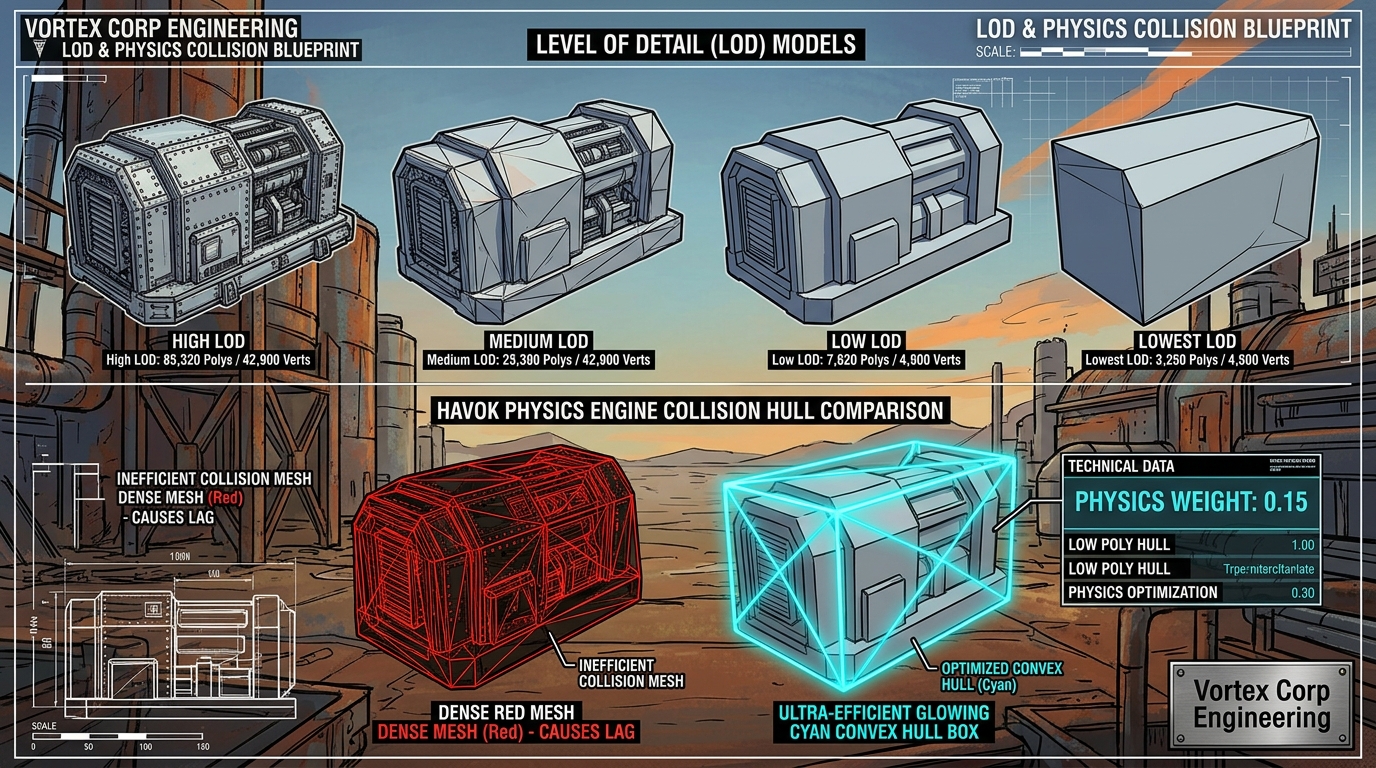
The single greatest contributor to inflated Land Impact is poor LOD management. Second Life renders objects using four discrete distance thresholds:
| LOD Tier | Active Viewing Distance | Primary Optimisation Objective | Target Vertex Reduction |
|---|---|---|---|
| High LOD | 0m – 15m (Close inspection) | Pristine bevels, mechanical seams, fine textures | 100% (Baseline clean mesh) |
| Medium LOD | 15m – 35m (Parcel viewing) | Primary structural contours, omit micro-bevels | 40% – 50% of High LOD |
| Low LOD | 35m – 75m (Sim traversal) | Basic architectural silhouette, zero micro-geometry | 15% – 20% of High LOD |
| Lowest LOD | 75m – 256m+ (Skyline draw) | Coarse bounding volume (cube/wedge blockout) | 6 – 24 Triangles Total |
- ▸Complete collapse of thin walls and planar panels.
- ▸Severe texture distortion and UV stretching.
- ▸Massive Download Weight penalties, because the viewer fails to reduce vertices aggressively at the Lowest LOD tier.
LOD Generator tab:
- 01Prim Studio automatically generates custom geometry for all four tiers using silhouette-preserving decimation algorithms.
- 02You can switch viewports with a single click to inspect High, Medium, Low, and Lowest models in real time.
- 03For the Lowest LOD, Prim Studio generates a specialised 12-triangle bounding wedge that retains the general colour and bounding volume of your build. Because the Lowest LOD triangle count is under 20, your Download Weight plummets below 0.6.
Step 6: Synthesising Havok Physics Collision Hulls
Physics Weight measures the processing power Second Life's Havok physics engine must spend whenever an avatar, projectile, or physical vehicle interacts with your object.
┌─────────────────────────────────────────────────────────────┐
│                 HAVOK COLLISION SHAPE ARCHITECTURE          │
├─────────────────────────────────────────────────────────────┤
│  [X] COMPLEX MESH (RED):                                    │
│      14,800 Polygons -> Havok lag, avatar snagging          │
│      Physics Weight = 38.5 LI (CATASTROPHIC)                │
│                                                             │
│  [X] VORTEX CONVEX HULL (CYAN):                             │
│      Simplified bounding box / single convex prism          │
│      Physics Weight = 0.15 LI (SUB-1 OPTIMAL)               │
└─────────────────────────────────────────────────────────────┘- ▸Convex Hull (Recommended for Furniture, Machinery & Props): Wraps the entire exterior of your build in a shrink-wrapped, mathematically convex 3D shell. An avatar cannot get stuck in microscopic gaps, and Physics Weight is capped at 0.1 to 0.2.
- ▸Decomposed Compound Hull (For Walk-In Structures & Doorways): Breaks walls and floors into individual convex convex sub-boxes, allowing avatars to walk through doorways and climb stairs without physical blockage.
- ▸Bounding Box (For Small Clutter & Light Fixtures): An ultra-lightweight 6-sided box. Ideal for decorative wall lamps, wires, and tabletop items that should not calculate intricate physical boundaries.
Physics Hull tab, select Generate Convex Hull and export the dedicated physics mesh.
Step 7: Exporting the Production DAE Bundle
Once geometry, LOD tiers, and physics collision hulls are synthesised, click Export Production Mesh Bundle in /prim-studio.
.dae files:
- 01
model_LOD_HIGH.dae(Optimised visual mesh) - 02
model_LOD_MED.dae(Medium distance mesh) - 03
model_LOD_LOW.dae(Far distance mesh) - 04
model_LOD_LOWEST.dae(Extreme distance 12-triangle blockout) - 05
model_PHYSICS.dae(Simplified Havok convex collision hull)
Step 8: In-World Mesh Upload & Final Verification
- 01Go to
Build$\\rightarrow$Upload$\\rightarrow$Model... - 02In the file dialogue, select
model_LOD_HIGH.dae.
┌─────────────────────────────────────────────────────────────┐
│                 SECOND LIFE MESH UPLOAD WIZARD              │
├─────────────────────────────────────────────────────────────┤
│  [ LEVEL OF DETAIL ]     [ PHYSICS ]     [ UPLOAD OPTIONS ] │
├─────────────────────────────────────────────────────────────┤
│  High:   [ model_LOD_HIGH.dae   ] (Triangles: 3,240)        │
│  Medium: [ model_LOD_MED.dae    ] (Triangles: 1,420)        │
│  Low:    [ model_LOD_LOW.dae    ] (Triangles:   480)        │
│  Lowest: [ model_LOD_LOWEST.dae ] (Triangles:    12)        │
├─────────────────────────────────────────────────────────────┤
│  Physics Tab:                                               │
│  Step 1 (Model): From File -> [ model_PHYSICS.dae ]         │
│  Step 2 (Decompose): Method -> Convex (Max Hulls: 1)        │
├─────────────────────────────────────────────────────────────┤
│  WEIGHT CALCULATIONS:                                       │
│  Download: 0.621  |  Physics: 0.150  |  Server: 0.500       │
│  TOTAL LAND IMPACT:  1.0 LI (Sub-1 raw: 0.621)              │
│  Upload Fee:         11 L$                                  │
│                                                             │
│                                      [ CALCULATE WEIGHTS ]  │
│                                      [ UPLOAD MODEL ]       │
└─────────────────────────────────────────────────────────────┘- ▸Level of Detail Tab:
- ▸High: Selected automatically (
model_LOD_HIGH.dae). - ▸Medium: Select
Load from file$\\rightarrow$model_LOD_MED.dae. - ▸Low: Select
Load from file$\\rightarrow$model_LOD_LOW.dae. - ▸Lowest: Select
Load from file$\\rightarrow$model_LOD_LOWEST.dae. - ▸Physics Tab:
From file $\\rightarrow$ model_PHYSICS.dae.
Step 2: Leave Decompose as default or click Analyze* if you created a multi-hull structural enclosure.
- ▸Upload Options Tab:
- ▸Check
Include texturesif you baked custom diffuse maps. - ▸Calculate Weights & Fee:
- ▸Click
Calculate weights & fee. You will see: - ▸Download Weight: ~0.6
- ▸Physics Weight: ~0.15
- ▸Server Weight: 0.50
- ▸Total Land Impact: 1 LI!
Upload (standard fee is typically $11\\text{ L}\\$$ to $13\\text{ L}\\$$).
Once rezzed in-world:
- 01Right-click the newly rezzed mesh and choose
Edit. - 02Navigate to the
Featurestab. - 03Ensure
Physics Shape Typeis set toConvex Hull(orPrimif you uploaded an analysed multi-room structure). If the object is purely decorative, you can set it toNone, completely zeroing out its physics weight!
Technical Audit & Benchmark Comparison Matrix
To demonstrate the real-world performance delta, our engineering team benchmarked a 24-prim industrial power generator built in-world:
| Engineering Parameter | Raw 24-Prim Linkset | Direct Raw .DAE Upload | /prim-studio Optimised Mesh |
|---|---|---|---|
| Land Impact | 24.0 LI | 34.8 LI | 0.8 LI (1 LI rounded) |
| Visible Triangles | 14,820 tris | 14,820 tris (All internal faces present) | 3,240 tris (Clean, culled topology) |
| Download Weight | N/A (Legacy Prims) | 26.4 (Viewer autodecimation failure) | 0.62 (Precision 4-tier LOD curve) |
| Physics Weight | 24.0 (Prim shapes) | 34.8 (Uncalculated micro-geometry) | 0.15 (Convex hull bounding box) |
| Server Weight | 12.0 (24 prim headers) | 0.50 (Single linked mesh node) | 0.50 (Single linked mesh node) |
| Draw Calls | Up to 24 draw calls | 8 draw calls | 1 to 2 draw calls |
| Distance Pop-in | Harsh prim LOD drop | Collapsed, jagged polygon artifacts | Seamless visual continuity |
Vortex Corp Engineering Guidelines & Best Practices
/prim-studio and link them together in-world./prim-studio so the Havok engine executes collision checks in microseconds.